Understanding the Interface
When you log in for the first time, the file explorer of the app should look something like this:
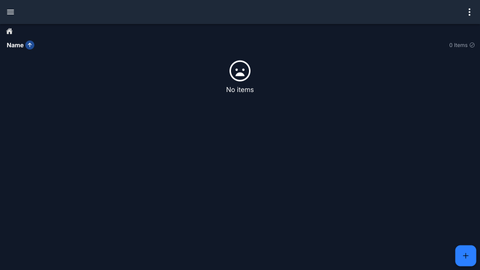
Currently, the file explorer is empty! Let's add some items.
Adding Items
There are two main ways to add items to your vault.
Floating Action Button (FAB)
The blue "+" button at the bottom of the screen allows you to add stuff. Tapping/clicking on it will expand it:
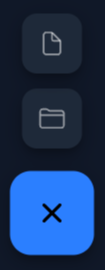
- The top option allows you to upload a file.
- The file will be encrypted before it is sent over the network. Thus, the server only stores encrypted files.
- The second option allows you to create a new folder. A popup will appear asking you to enter the name of the folder.
Close the menu by clicking on the blue button again (which now displays "×").
Drag-and-Drop
This is only supported on desktop/PWA.
You can also drag and drop files and folders onto the screen.
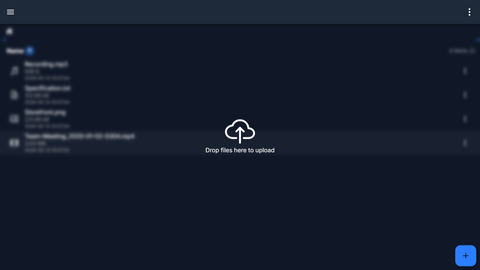
- Dragging and dropping file(s) will upload them to the current folder.
- Dragging and dropping a folder (which could contain files/folders) will create a new folder with the same name in the current location, and also upload all the files/folders inside it.
Navigation
After adding some items, your file explorer should look something like this:
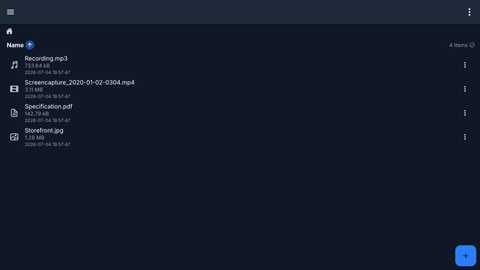
- Tap on a folder to navigate into it.
- Tap on a file to download and decrypt the file.
- File decryption happens only on the client and never on the server.
- Tap on the ellipsis on the side of an item to bring up a popup that allows you to rename, move, or delete the item.
- For desktop/PWA users, you can also right-click on an item to bring up the same popup.
You can also sort the items in the file explorer by tapping on the up arrow on the side of "Name". A popup will appear showing a list of sorting options:
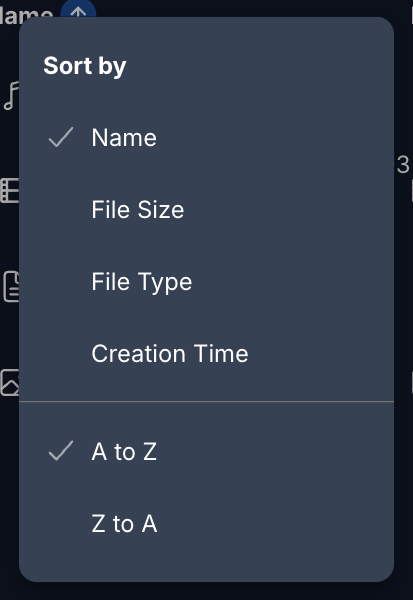
You can choose any of the sorting options to sort the files and directories, as well as the sorting order.
The top-right corner has an ellipsis menu:
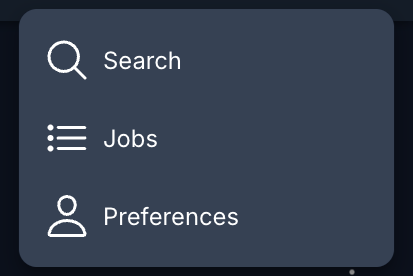
- "Search": search for files
- "Jobs": (re)open the jobs modal
- "Preferences": access user/server preferences
- (Mobile Only) "Open Excalibur Folder": opens your local device's file manager to where the downloaded files are stored
- For desktop/PWA users, the files are downloaded to your device's Downloads folder
Jobs
When you upload or download a file, a new job is created and a jobs modal appears on the bottom of the screen.

This allows you to see the number of completed, pending, and failed jobs.
More details about the jobs can be found by expanding the modal:
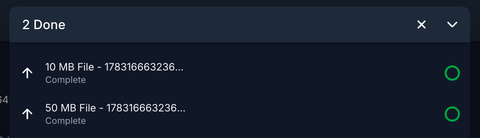
Here you can see the list of active jobs, as well as their status and progress. A green progress bar means that the job is complete while a red progress bar means that it failed.
An active job can be cancelled by hovering over the circular progress bar and then tapping/clicking on the "×".